The Image2D view in the camera window is the default view for 2D cameras. In this view, the image component "Intensity" is displayed.
Disable/enable image processing and display
Use  to disable (or enable) all image processing steps and the display. This allows you to run tests without extensive image processing, e.g. to check if there are errors in the image processing or in the camera connection (see Performance monitor).
Use the drop-down menu to show or hide different views, e.g., when working with a uEye 3D camera. The selection depends on the enabled image components (see Host features dialog).
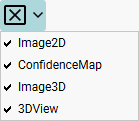
Fig. 245: Enable views
HDR mode
With HDR mode enabled, the following views are displayed in the camera window:
•SourceView displays the source images. The number of images in SourceView depends on the settings of the respective HDR mode.
•Image2D displays the computed image based on the source images.
uEye 3D cameras
Depending on the selected image component (see Host features dialog), you can select different views in the camera window:
•Image2d for the image component "Intensity"
•Image3D and 3DView for the image component "Range"
•ConfidenceMap for the image component "Confidence"
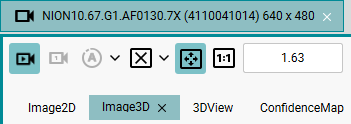
Fig. 246: Image3D and 3DView
If you have opened multiple views in the camera window, you can click  to display all views side by side.
|
Unlike the general operation of the display in the camera window (see Scaling and panning the display), you can zoom directly in the “3DView” view using the mouse wheel and rotate the 3D view using the right mouse button. Use the left mouse button to pan the view. You set the default views in the Settings 3D dialog. |