Click  in the tool menu to open the dialog.
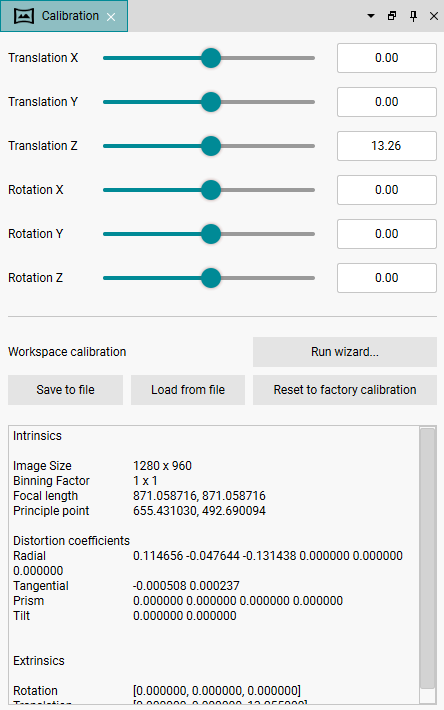
Fig. 256: "Calibration" dialog
Translation X/Y/Z
You can use the sliders under Translation X/Y/Z to move the coordinate origin in the "3DView".
Rotation X/Y/Z
You can use the sliders under "Rotation X/Y/Z" to rotate the coordinate axes in the "3DView".
Calibrating the workspace
To calibrate the workspace, follow the instructions in the calibration wizard. For calibration, you need the calibration plate and the “Intensity” image component must be set, see Host features dialog.
Ensure that the light conditions are uniform. Ensure optimum contrast between the calibration plate and the background. Avoid overexposing the calibration plate. Place the calibration plate with the labeling at the top left and thus the black circle at the top left. Otherwise the 3D data is "distorted".
•To start the calibration wizard, click "Run wizard."
•If you want to delete the workspace calibration, click on "Reset to factory calibration."
•Note that the camera must be recalibrated after it was disconnected from power supply. We recommend to save the calibration data at the end of the calibration wizard.